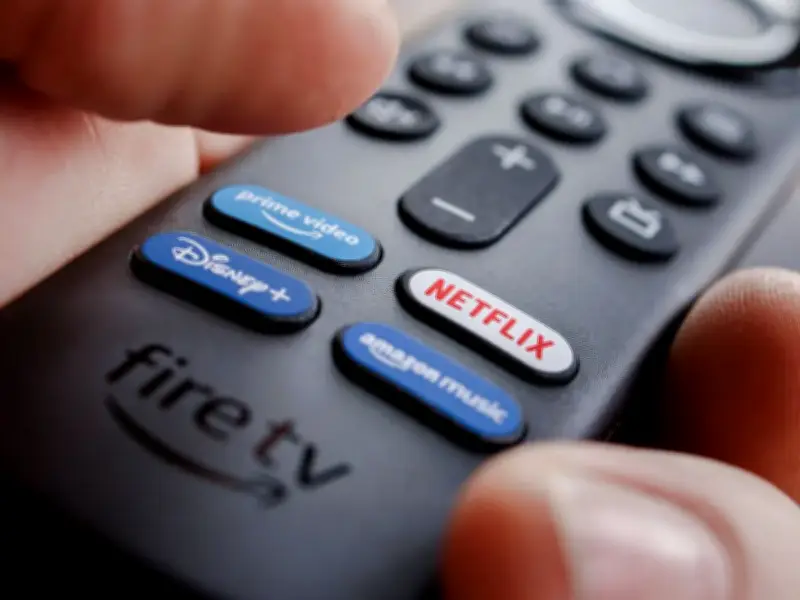
Turning off Featured Content autoplay on a Fire TV Stick can help improve its speed, reduce buffering, and save data, according to a guide from lifestyle outlet Daily Record.
The setting plays preview clips on the home screen while users browse available programmes. These snippets begin loading before a user presses play, competing for bandwidth with the stream and causing the device to feel sluggish and unresponsive.
How to change the setting
To fix it, press Home on the Fire TV remote, go to Settings, then Preferences, and access Featured Content. Toggle Allow Video Autoplay to off, and repeat this for Allow Audio Autoplay.

Returning to the home screen and scrolling should then be noticeably faster, with content loading more swiftly without delay.
Additional speed measures
If the device still performs slowly, several extra steps can help. Perform a soft reboot by pressing Select and Play/Pause at the same time, or disconnect the stick for 10 seconds before reconnecting. Update the software by going to Settings and checking for available updates.
Place the stick in direct view of the router where possible, and avoid hiding it behind the TV if signal strength is poor. For TVs far from the WiFi router, consider a cheap HDMI extender to position the stick towards the front of the screen, improving line of sight. Equipment such as baby monitors and cordless bases can interfere with the signal, so relocate these where possible.