Fire TV Stick owners experiencing sluggish performance or endless buffering can resolve the issue by changing a single setting, which also saves data and enhances the device's speed. The fix involves disabling the Featured Content autoplay feature, which plays preview clips on the home screen as users browse available content.
These trailers begin loading before the user presses play, competing for bandwidth with the stream and leaving the device feeling slow and unresponsive. Disabling this feature takes seconds and can make a significant difference to the viewing experience.
How to disable autoplay
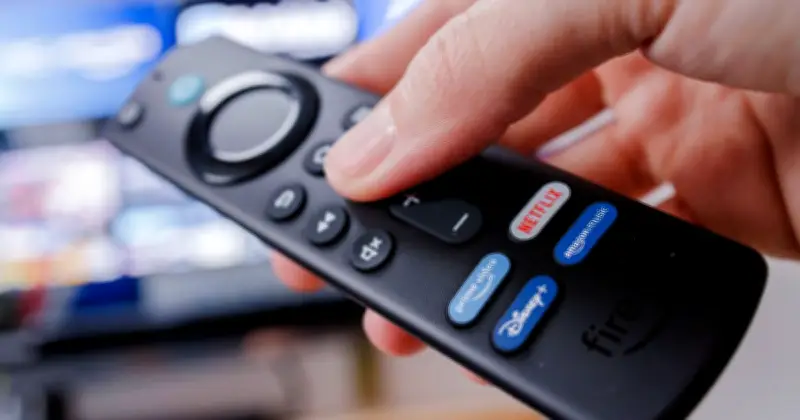
To apply the fix, press the Home button on the Fire TV remote and navigate to Settings. From there, select Preferences and open Featured Content. Toggle Allow Video Autoplay to off, and repeat the same for Allow Audio Autoplay.

Returning to the home screen should reveal noticeably faster scrolling and content loading without lag. If the device still appears sluggish, several additional measures can restore it to full speed.
Further steps to boost performance
A soft reboot can be performed by pressing Select and Play/Pause together, or by disconnecting the device for 10 seconds before reconnecting. Updating the software via Settings to check for available updates is also recommended.
Where possible, the stick should be placed within view of the router and not hidden behind the television if the signal is poor. For televisions located far from the WiFi router, a cheap HDMI extender can position the stick towards the front of the TV screen, enhancing line of sight.
Equipment such as baby monitors and cordless bases can interfere with the signal, so moving these away from the device can help improve performance.