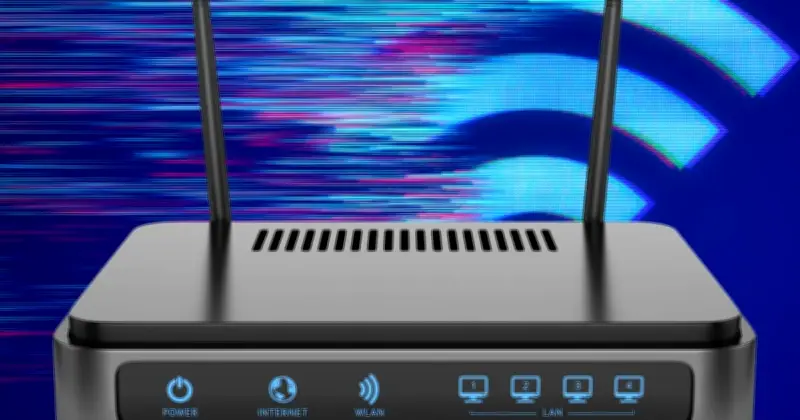
UK households struggling with sluggish broadband speeds may benefit from new advice issued by regulator Ofcom. While download speeds are ultimately controlled by the Internet Service Provider (ISP), several steps can ensure Wi-Fi performs at its best and isn't slowed to a crawl.
Ofcom's 8 free fixes to try
One of Ofcom's first tips is to reboot the router. The old trick of turning things off and back on again can work wonders.
"Turn your router off, wait about 30 seconds, then turn it back on. This may help clear temporary glitches and improve your connection," Ofcom explained. A restart can take around 5 minutes, so it's worth making sure nobody needs the web before pressing the off switch.
Next, there's the simple trick of ensuring the router is up to date with the latest software. You don't have to do anything apart from keep your router switched on at all times, with most updates being pushed out automatically at night.
"Keep your broadband router, your Wi-Fi booster or mesh devices, and your fibre connection box switched on, even when you are not using them, so they can receive automatic updates," said Ofcom's advice.
Router position and interference
Another important check is the router's position, as this can be one of the easiest ways to fix connection problems. Keep it away from obstacles and walls, and make sure its path is as clear as possible—so don't put it in a cupboard or behind the TV. Avoid radiators, bookcases, fish tanks and thick walls. Ofcom says the best location for your router is generally out in the open, off the floor, and roughly central in your home.
Other electrical devices near the router can also cause issues. Things like microwaves, baby monitors, cordless phones, halogen lamps, dimmer switches, and speakers can all interfere with the signal. If your router is near one of those gadgets, move them and see if it makes a difference.
Wi-Fi is convenient, but Ofcom reminds users that a wired connection is always best.
"If possible, use a network cable instead of Wi-Fi. A wired connection is usually faster and more reliable. If your computer or connected device has an Ethernet socket and doesn't need to move around, plug it straight into the router. Use a cable that can handle your broadband speed."
Other tips and limitations
Other things to try include disconnecting devices that aren't in use, such as old phones, and checking download speeds on different gadgets around the home. If one product is much slower than the others, the problem might be with that device rather than your broadband.
These tips won't make the speeds you pay for any faster, as that's locked by your provider. However, they will ensure you have the best experience.